I stumbled on OpenClaw a few weeks ago and immediately wanted to try it. The pitch is straightforward: it's an open-source AI gateway that connects LLMs to messaging platforms like Telegram, Discord, and WhatsApp. You bring your own model, point OpenClaw at it, and suddenly you've got an AI assistant living inside your chat app.
What really pulled me in was the community. Over 13,700 skills contributed by users, MCP integration baked in, support for the A2A protocol, and a workflow engine called Lobster that lets you chain tools together. It felt like someone had taken everything I wanted from a personal AI setup and packaged it into one CLI tool.
So I decided to throw it on an EC2 instance and wire it up to Telegram. The whole thing took about 30 minutes. Here's what I ended up with:
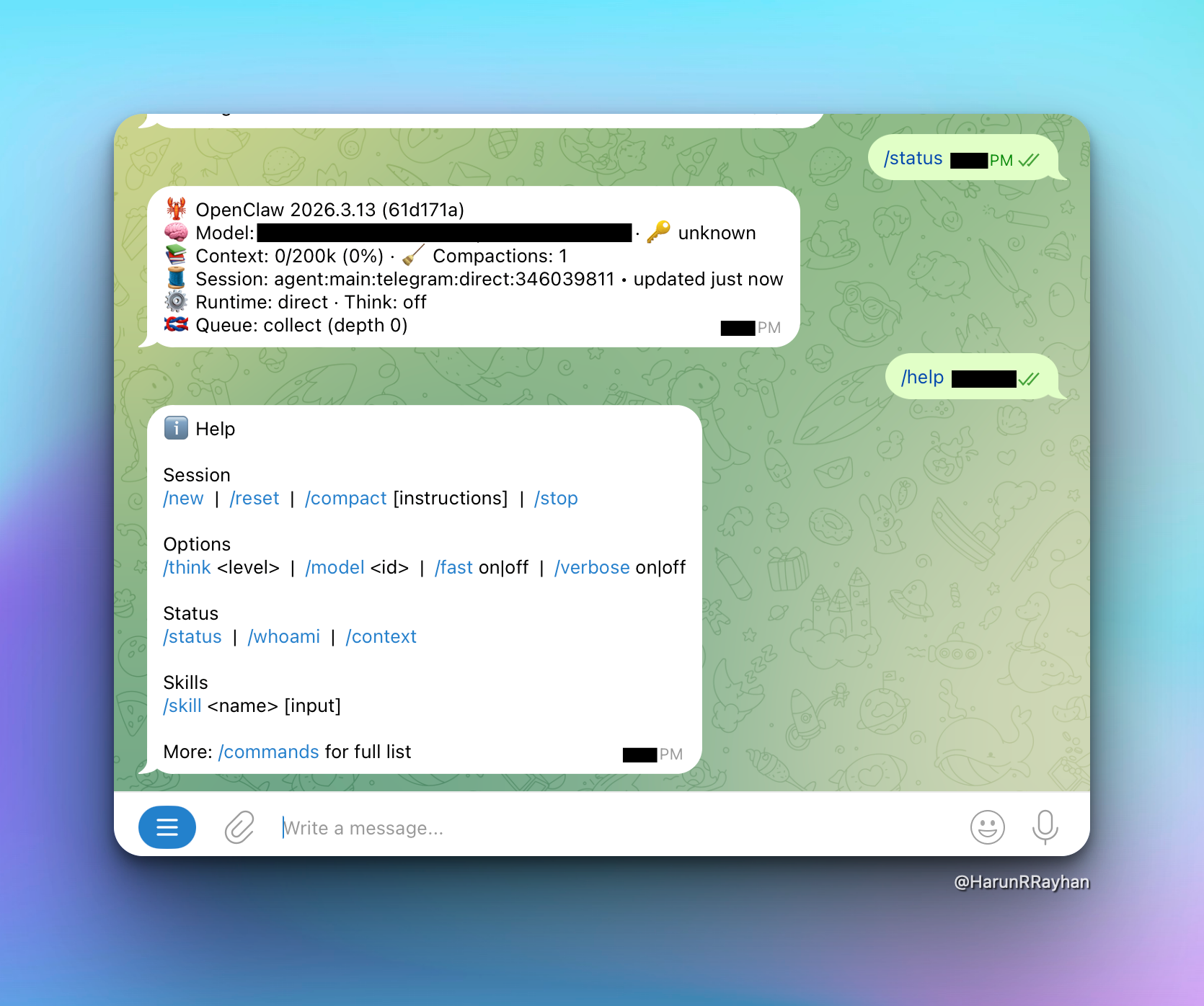
That's the Telegram bot responding to /help. Sessions, options, status commands, skills. All working. Let me walk you through how I set this up.
Launching the EC2 Instance
I originally planned to use a t4g.medium (Graviton ARM64) because the per-hour cost is lower. But I ran into something annoying. The standard Ubuntu 24.04 LTS AMI doesn't support Graviton processors. Only the Ubuntu Pro AMI does, and I didn't want to deal with Pro licensing for a side project. So I went with t3.medium on x86_64 instead. Totally fine for what we're doing here.
Here's the instance config I used:
- AMI: Ubuntu 24.04 LTS (x86_64)
- Instance type: t3.medium (2 vCPU, 4 GB RAM)
- Storage: 100 GB gp3
- Region: ap-southeast-1 (Singapore)
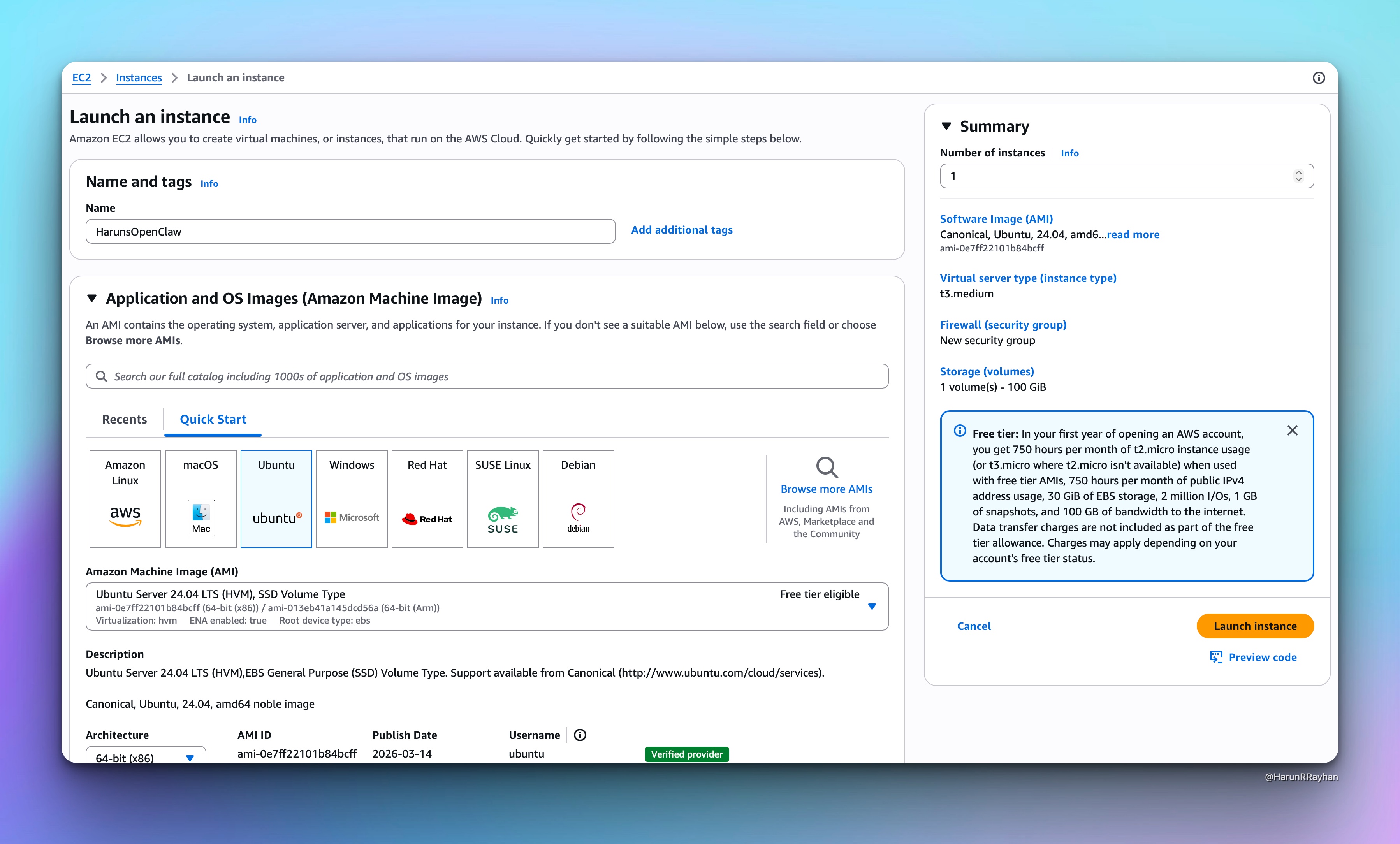
Make sure you create or select a key pair for SSH access. You'll need it in a minute.
For the security group, open port 22 for SSH (restricted to your IP). OpenClaw's gateway runs on loopback by default, so you don't need to expose any extra ports to the internet. That's actually a nice security touch.
After clicking Launch, give it about 30 seconds to spin up.
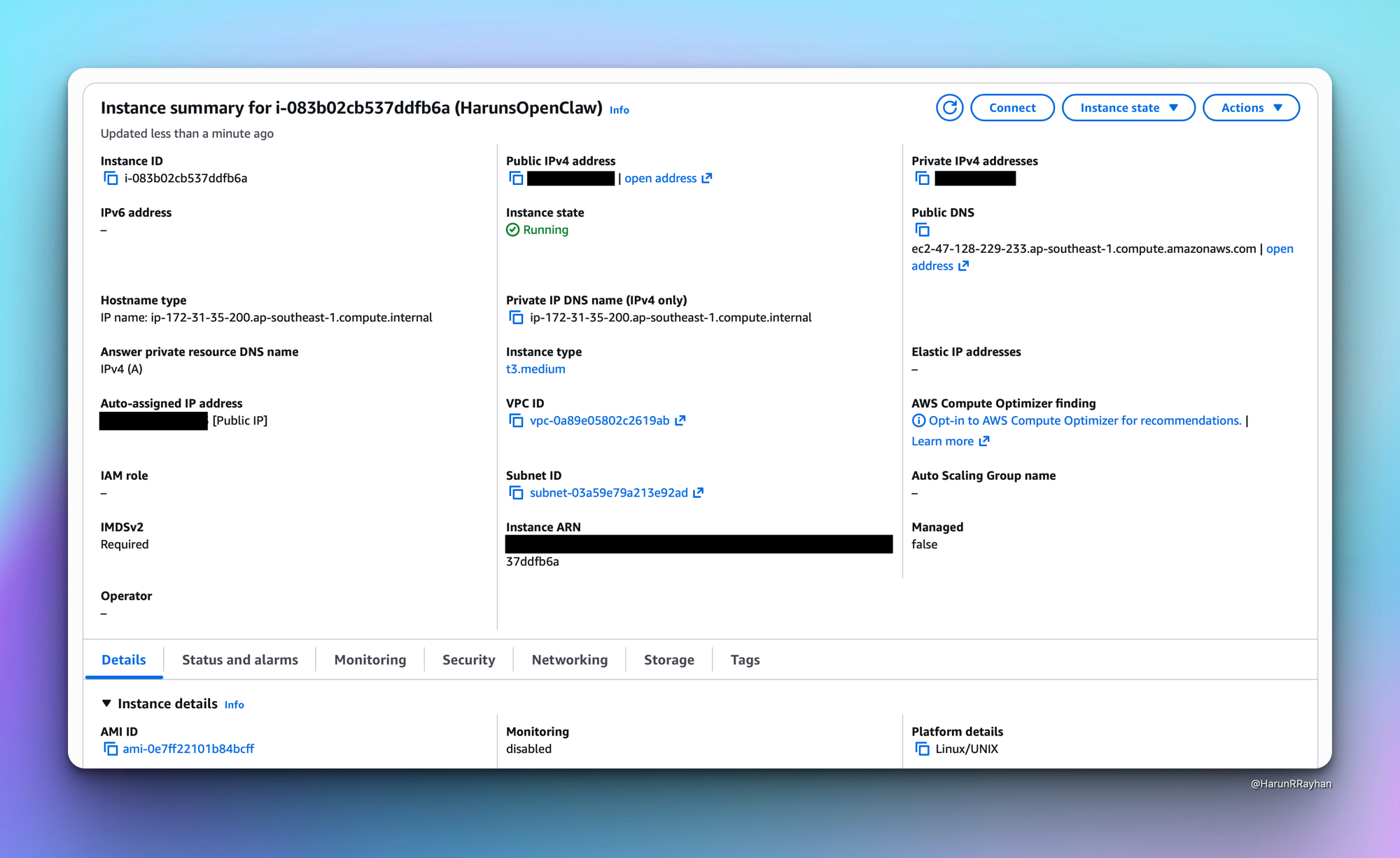
Once the instance shows "running" with a green dot, grab the public IP and SSH in:
ssh -i ~/.ssh/your-key.pem ubuntu@<your-ec2-ip>
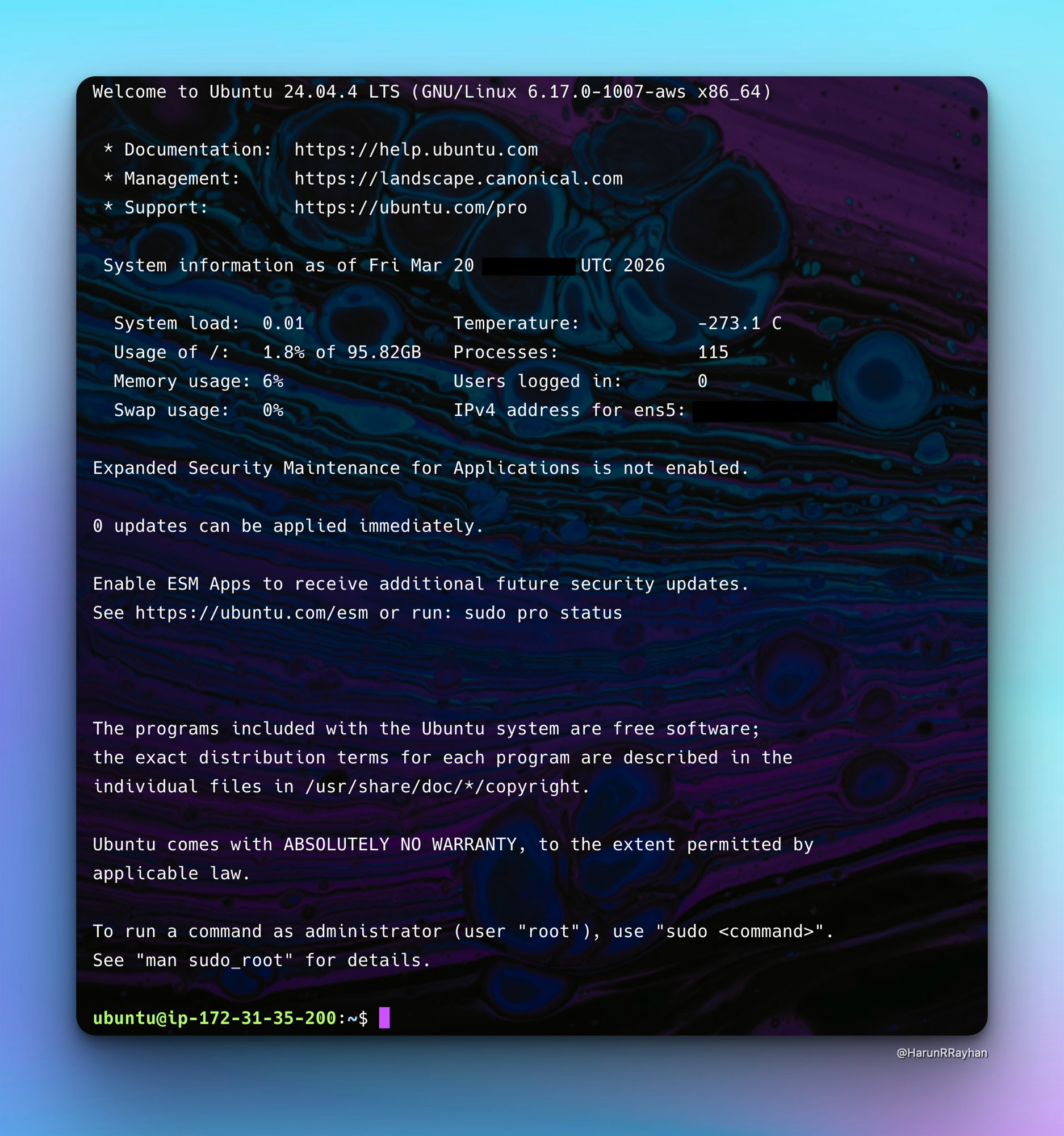
You should see the Ubuntu welcome banner. We're in.
Installing Node.js and OpenClaw
First things first, update the system packages. Fresh Ubuntu installs always have a bunch of pending updates:
sudo apt-get update -y && sudo apt-get upgrade -y
OpenClaw needs Node.js 22. The version that ships with Ubuntu's default repos is way too old, so we'll use the NodeSource setup script:
curl -fsSL https://deb.nodesource.com/setup_22.x | sudo -E bash -
sudo apt-get install -y nodejs
Verify it installed correctly:
node --version   # v22.22.1
npm --version    # 10.9.4
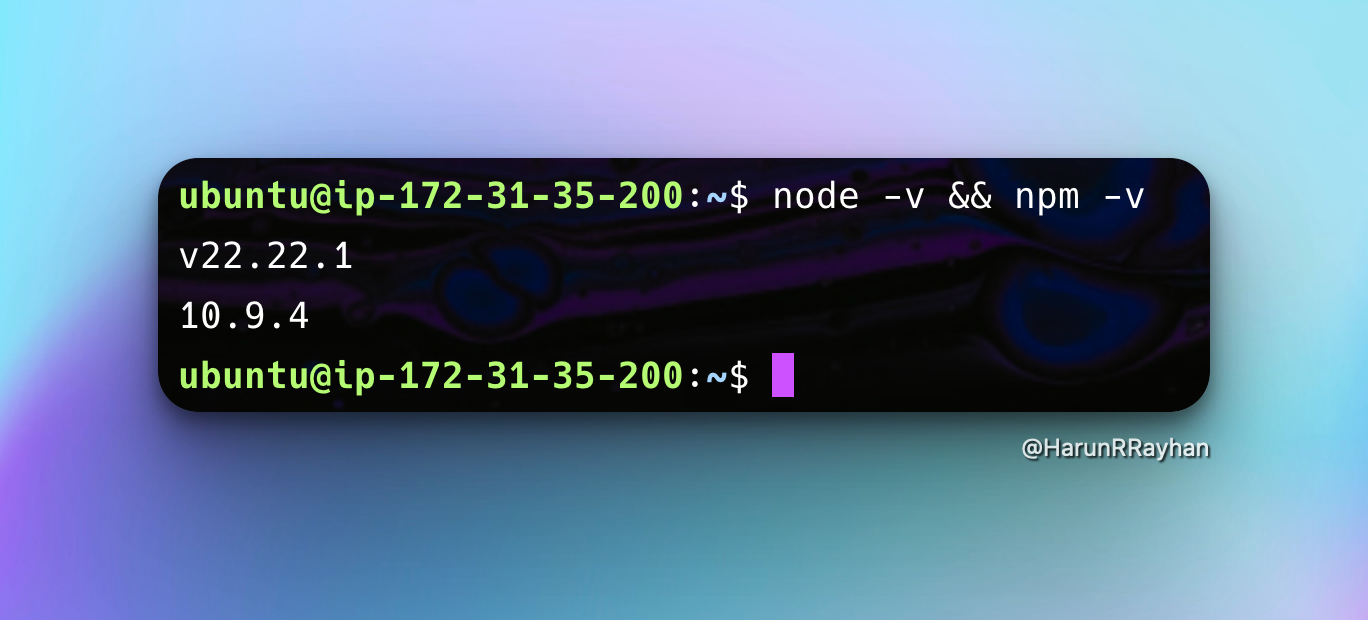
Now install OpenClaw globally:
sudo npm install -g openclaw
This pulls in about 539 packages. Took roughly 20 seconds on my t3.medium.
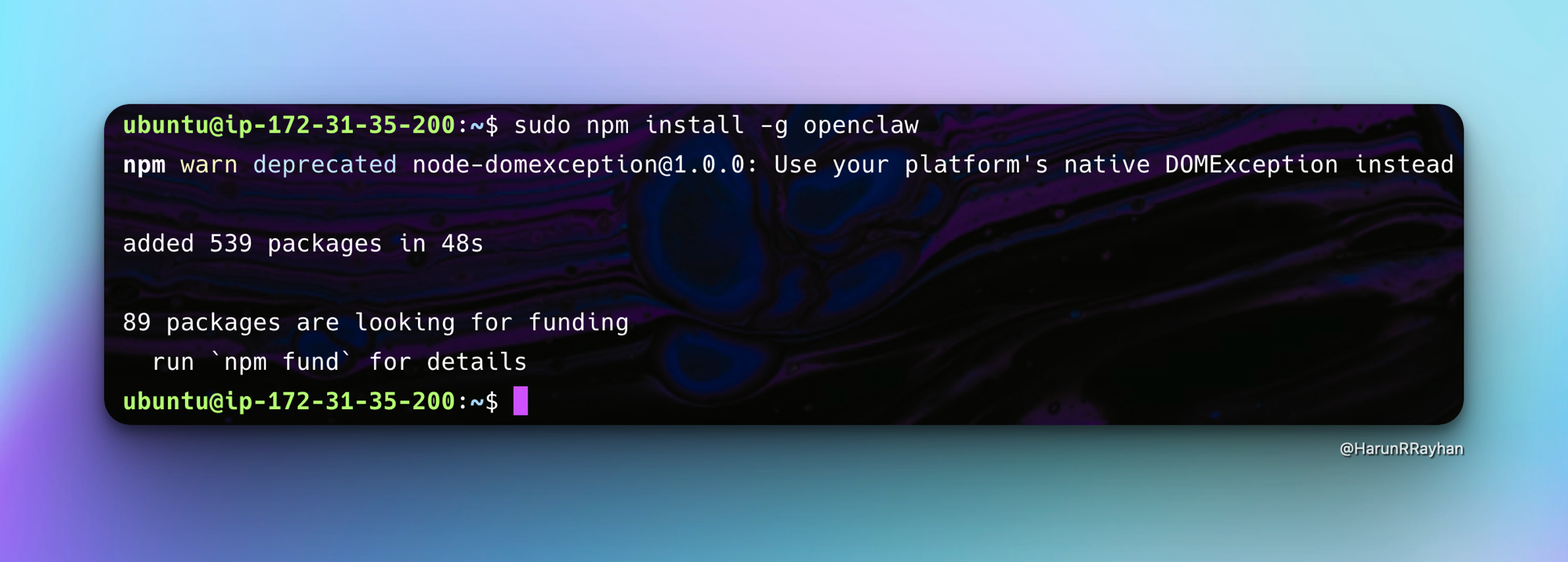
That's the foundation sorted. Node.js and OpenClaw are ready to go.
Connecting Claude as Your LLM
This is where you tell OpenClaw which model to talk to. The cleanest path is to use an Anthropic API key directly. During onboarding, OpenClaw will ask you to pick a provider. Choose Anthropic, paste your API key, and select the model you want (I went with claude-sonnet-4 for a good balance of speed and quality).
If you don't have an API key yet, head to console.anthropic.com and create one. You'll need some credits loaded on your account.
Now, before we run the onboarding, I want to mention something I tried that's worth knowing about.
Side Note: Claude Max Proxy
If you have a Claude Max subscription, there's a tool called claude-max-api-proxy that exposes an OpenAI-compatible API endpoint locally. It piggybacks on your Claude Code authentication so you don't need a separate API key. I set this up and it actually works well at the infrastructure level. The proxy runs as a systemd service, stays up across reboots, and responds to API calls just fine.
Here's how I set it up, in case you want to try it:
# Install Claude Code and the proxy
sudo npm install -g @anthropic-ai/claude-code
sudo npm install -g claude-max-api-proxy
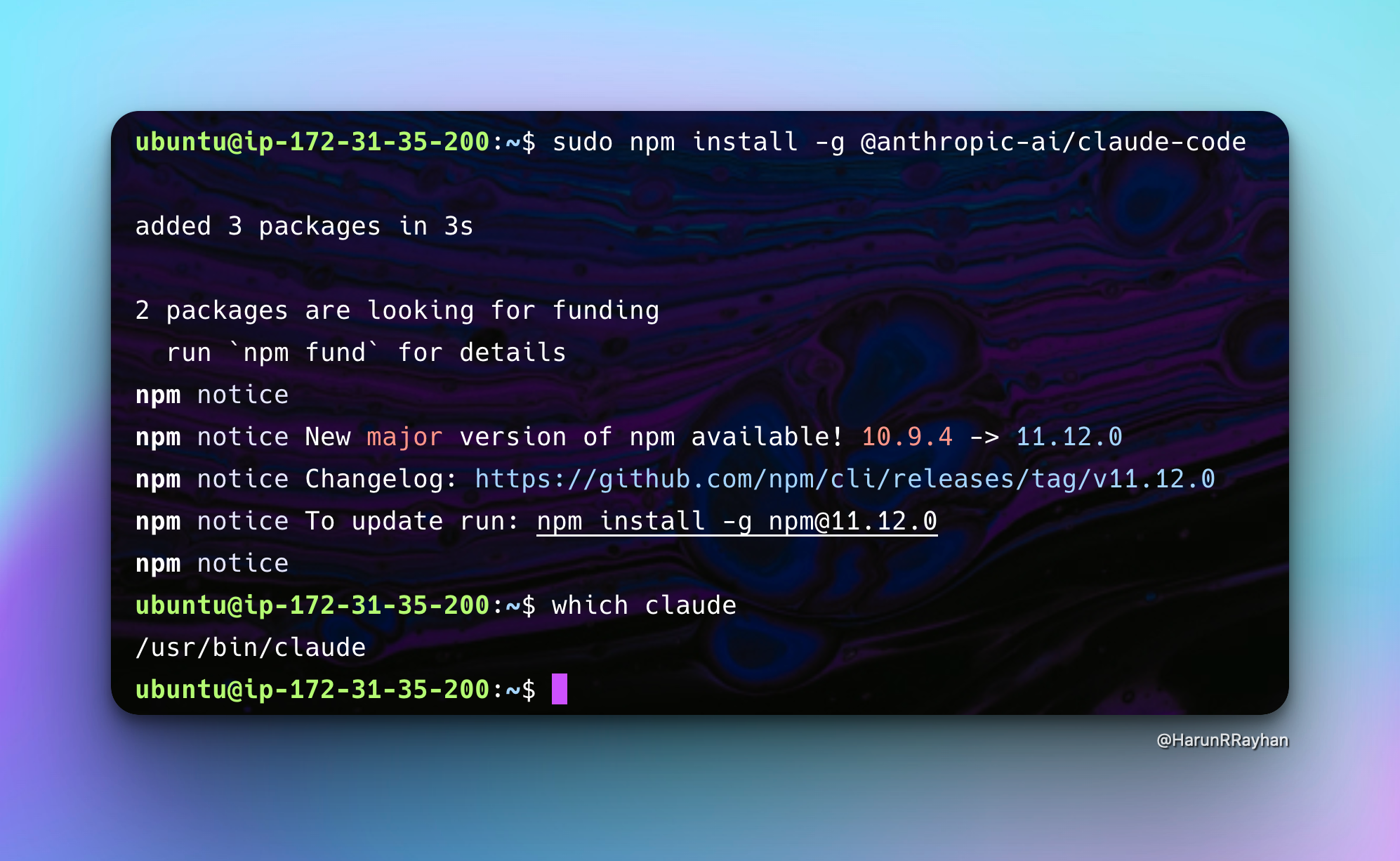
After installing Claude Code, authenticate it by running claude once. It'll open a browser link for OAuth. Once authenticated, you'll see the TUI:
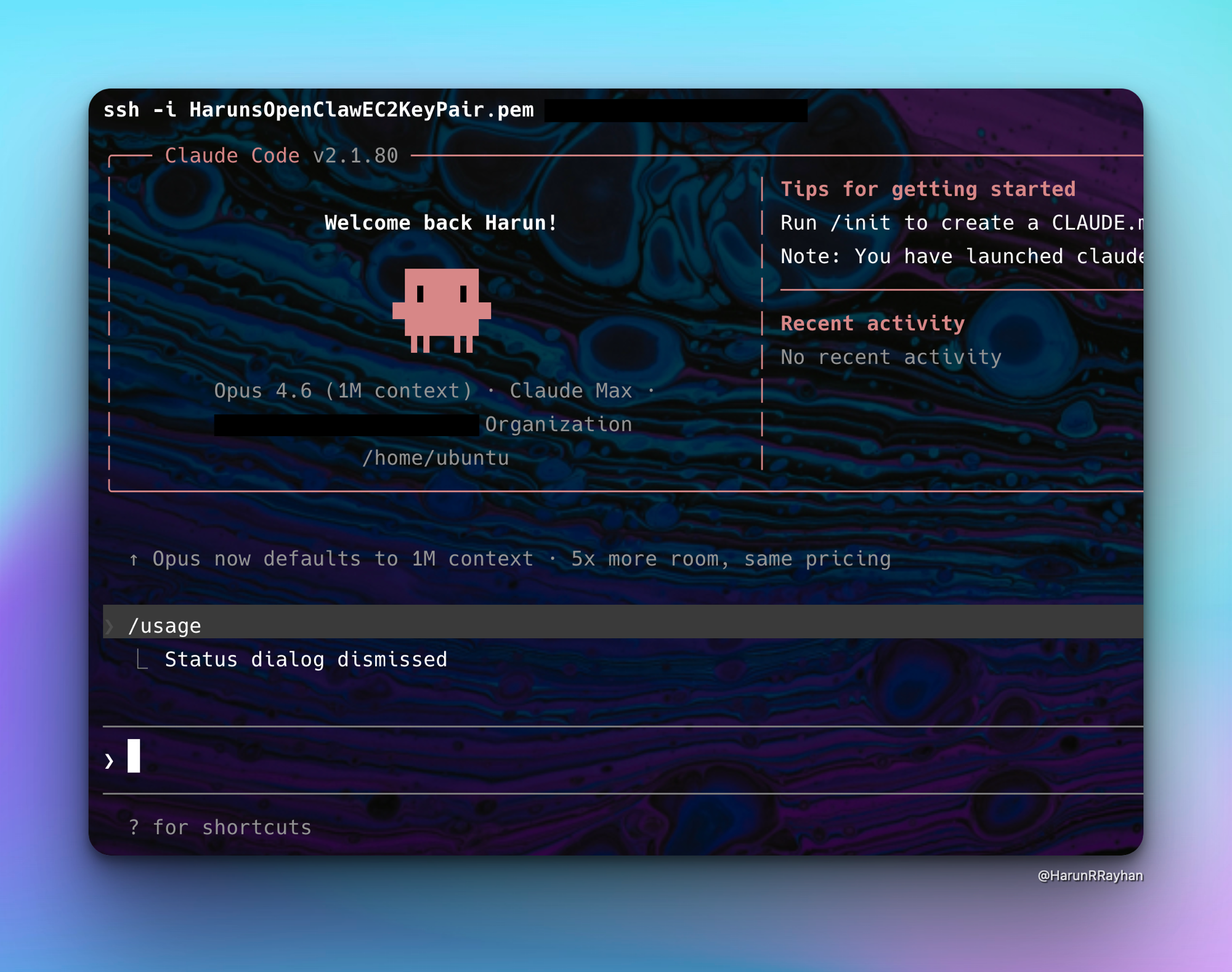
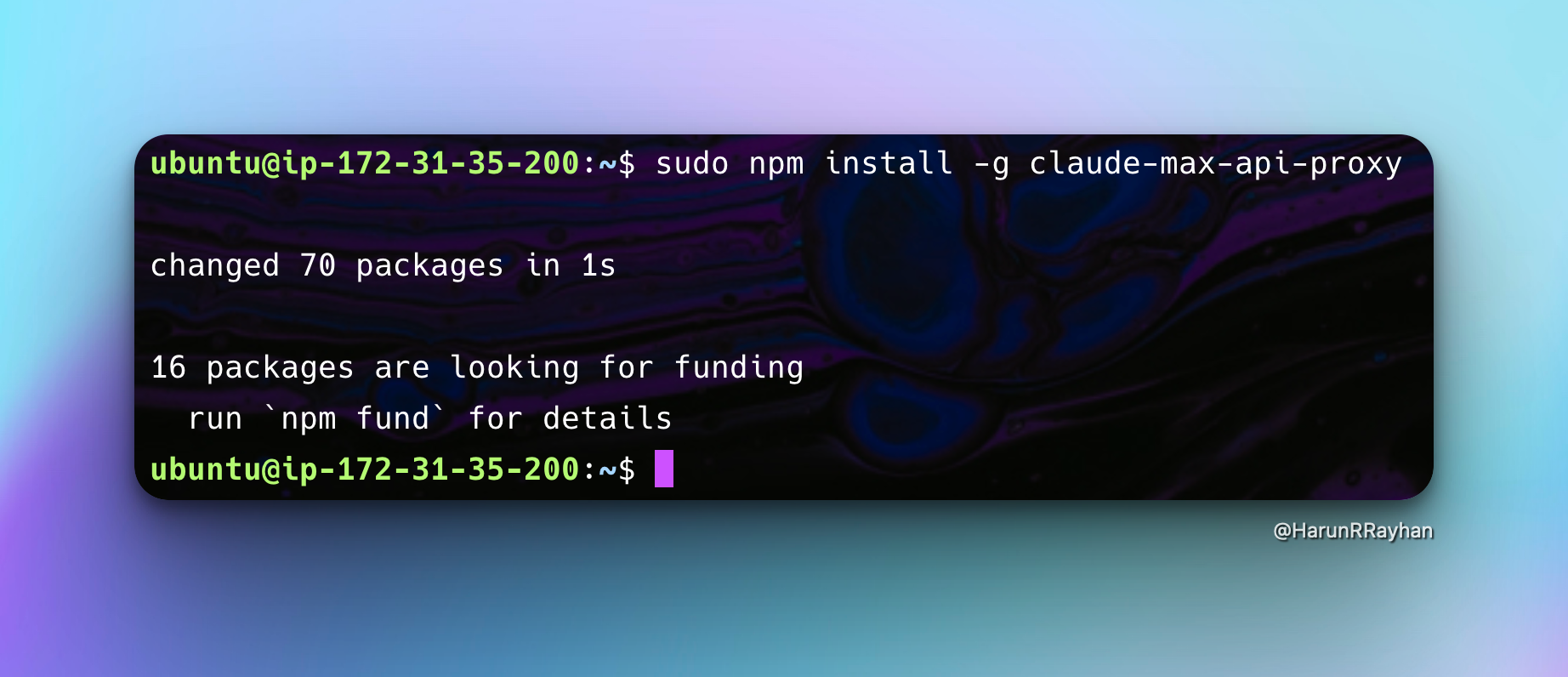
Then create a systemd service so the proxy runs in the background:
sudo tee /etc/systemd/system/claude-proxy.service > /dev/null <<EOF
[Unit]
Description=Claude Max API Proxy
After=network.target

[Service]
Type=simple
ExecStart=/usr/bin/claude-max-api
Restart=always
RestartSec=5
User=ubuntu
Environment=HOME=/home/ubuntu

[Install]
WantedBy=multi-user.target
EOF

sudo systemctl daemon-reload
sudo systemctl enable claude-proxy
sudo systemctl start claude-proxy
sudo systemctl status claude-proxy
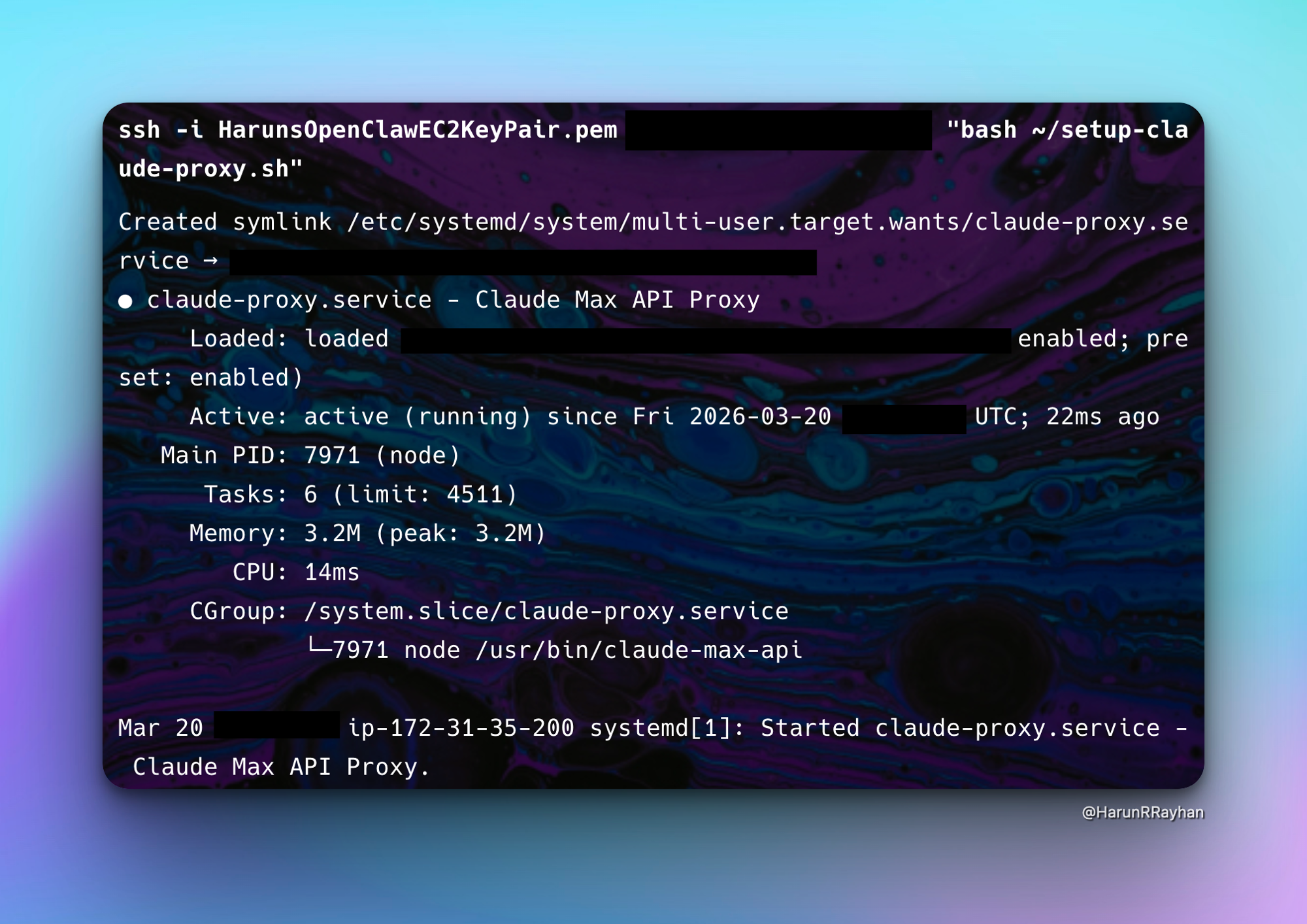
The proxy serves on port 3456 and exposes three models:
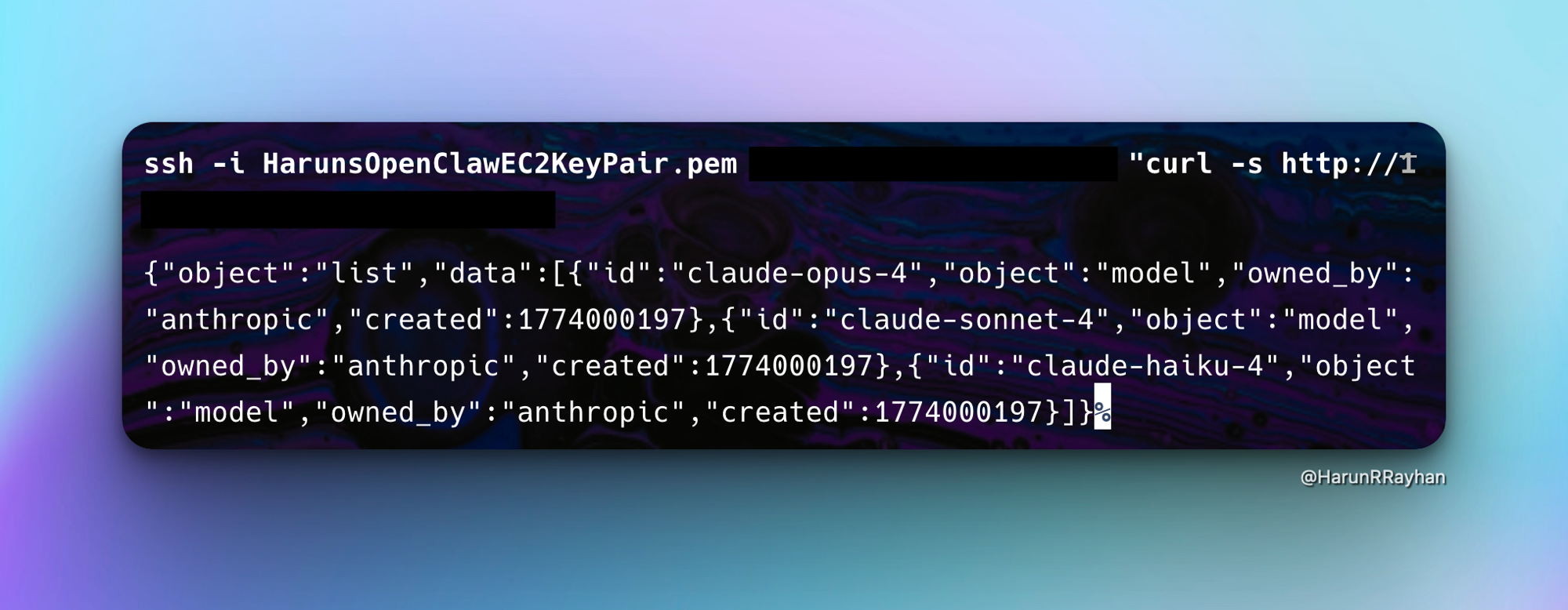
claude-opus-4, claude-sonnet-4, and claude-haiku-4. You can hit it with any OpenAI-compatible client.
However, there's a catch. As of OpenClaw 2026.3.13, there's an open GitHub issue where custom providers have a serialization bug. Plain text messages get sent to the LLM as [object Object] instead of the actual content. The proxy itself works perfectly (I confirmed this with direct curl tests), but OpenClaw's custom provider handling mangles the payload. So for now, stick with the direct Anthropic API key approach for OpenClaw. The proxy is still useful for other tools that speak the OpenAI format, and this bug will likely get fixed in a future release.
Setting Up Telegram
Before running OpenClaw's onboarding, you need a Telegram bot token. Open Telegram, search for @BotFather, and start a chat. Send /newbot, pick a display name for your bot, then choose a username (it has to end in "bot"). BotFather will reply with an API token. Copy that token somewhere safe. You'll paste it during onboarding in a second.
Now run the OpenClaw onboarding wizard:
openclaw onboard
The wizard is interactive but pretty quick once you know what to pick. Choose Manual for the setup type, then Local gateway since we're running everything on this machine. When it asks for the LLM provider, pick Anthropic and paste your ANTHROPIC_API_KEY. I went with claude-sonnet-4 for the model, good balance of speed and cost.
For the gateway, I picked Loopback (localhost only) and Token-based auth. Tailscale I left off. Then when it asks about channels, paste your Telegram bot token. Skip the DM access policies and the search provider for now. You can configure both later.
The gateway starts on port 18789, bound to loopback. Nothing outside the machine can reach it directly. Your Telegram bot connects outbound to Telegram's servers, so no inbound ports need to be opened. That's actually a nice default from a security standpoint.
After onboarding finishes, you need to approve the Telegram pairing. OpenClaw generates a pairing code. Run:
openclaw pairing approve telegram <YOUR_PAIRING_CODE>
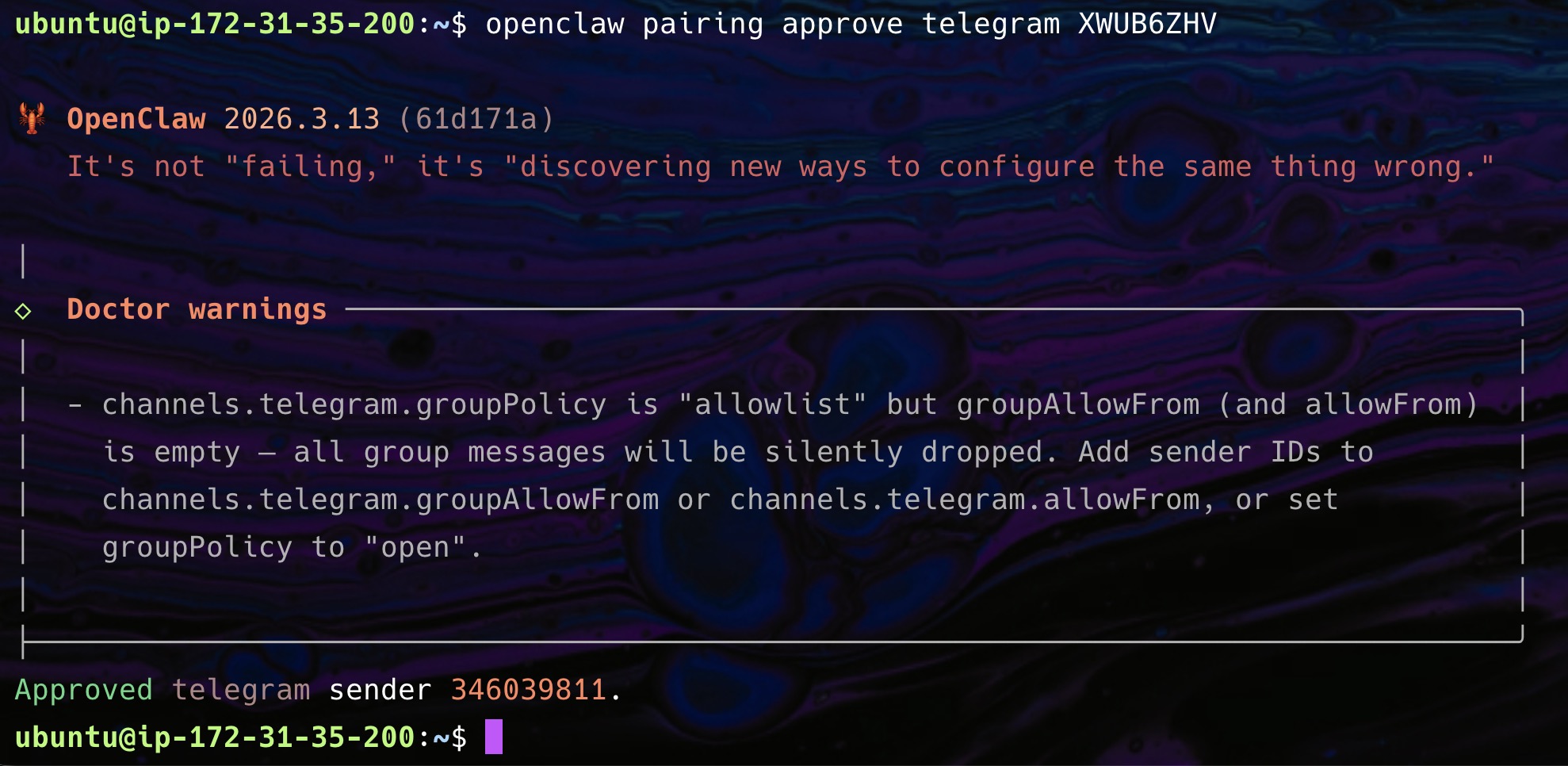
Once approved, your Telegram bot is live and connected to Claude.
Running and Testing
With the pairing approved, open your Telegram bot and send /help. You should see a full command list broken into sections: Session management, Options, Status, and Skills.
That response means everything is wired up correctly. The Telegram bot is talking to the OpenClaw gateway, which is sending requests to Claude through the Anthropic API.
Try sending a regular message. Something like "explain how DNS works in two sentences." Claude should respond right in the Telegram chat. The latency depends on your region and the model you picked. With claude-sonnet-4 in ap-southeast-1, I was seeing responses in about 3 to 5 seconds for short prompts. Longer conversations take a bit more, obviously.
Once you're in, start poking around. The /session commands are something I kept coming back to. You can name sessions and switch between them, which I found useful when I didn't want a coding thread bleeding into unrelated questions.
The skills system is genuinely impressive. Over 13,700 community-contributed skills, browsable from Telegram with /skills. I spent way too long just scrolling through them. Web search, code execution, all sorts of things you can wire in without writing any code yourself.
One practical note: if you close your SSH session, the OpenClaw gateway stops. For a persistent setup, you'll want to run it as a systemd service or inside a tmux session. I used tmux during my testing because it was quick:
tmux new -s openclaw
openclaw gateway start
# Ctrl+B then D to detach
Then you can disconnect from SSH and the gateway keeps running. Reconnect later with tmux attach -t openclaw.
Wrapping Up
So that's OpenClaw on EC2, talking to Claude, accessible through Telegram. The whole setup took me about 30 minutes, and most of that was the t3.medium pivot and fiddling with the proxy (which, as I mentioned, you can skip entirely by using the Anthropic API key directly).
What I like about this setup is the flexibility. Telegram is just one channel. OpenClaw supports Discord, WhatsApp, and Slack too. You could wire up multiple channels to the same gateway and have Claude available wherever your team already hangs out. The MCP integration means you can connect external tools and data sources. And the Lobster workflow engine opens up automation possibilities that I haven't even started exploring yet.
The t3.medium handles it comfortably. OpenClaw's resource usage is pretty light when idle, and even during active conversations the CPU barely moves. You could probably get away with a t3.small if you wanted to cut costs further, though I haven't tested that personally.
If you're looking for a self-hosted alternative to paying per-seat for AI chat tools, this is worth trying. Throw it on an EC2 instance, connect your Anthropic key, and you've got a private AI assistant that your whole team can reach through Telegram.
Hope you enjoyed this one. If you set up OpenClaw or run into something I didn't cover, find me on Twitter at https://x.com/harundotdev. Always happy to chat about this stuff.
 Photo by Yaroslav Shuraev on Pexels
On this post
Comments
A reply stays under the note it answers.
No comments yet.
If you have a note on Running OpenClaw on Amazon EC2 with Claude and Telegram, sign in and leave it.